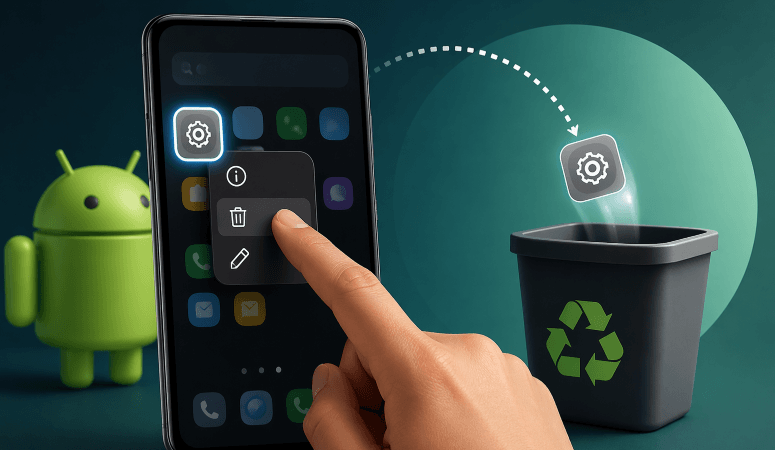
How to Uninstall Apps on Android is something almost every smartphone user needs to know, especially as apps pile up over time and start eating into your storage. Whether you’re trying to free up space, improve performance, or just clean up your home screen, uninstalling apps is a basic but powerful skill. The good news? It’s easier than you might think—and there are actually several ways to do it depending on your device and preferences.
In this guide, we’ll walk through everything in a relaxed, easy-to-follow way. No tech jargon overload—just practical steps, helpful tips, and a few tricks you might not have known before.
Why You Should Uninstall Unused Apps
Before jumping into the steps, let’s talk about why uninstalling apps matters.
Over time, unused apps can clutter your phone. Some of them keep running in the background, consuming memory, battery, and even mobile data. Others just sit there, taking up precious storage space.
Here’s what happens when you regularly clean up apps:
- Your phone runs smoother
- You gain more storage for photos and videos
- Battery life improves
- Your interface becomes cleaner and easier to use
Think of it like cleaning your room—once you get rid of what you don’t need, everything feels better.
The Most Common Way to Uninstall Apps
Let’s start with the simplest method. This is the one most people use daily.
From the Home Screen or App Drawer
This method works on most Android devices:
- Find the app you want to remove
- Tap and hold the app icon
- A menu will appear
- Tap “Uninstall”
- Confirm your choice
That’s it. Done in seconds.
Some phones also let you drag the app icon to an “Uninstall” option at the top of the screen. It feels intuitive and quick—perfect for everyday use.
Using Settings for More Control
If you want a more detailed view of your apps, this method is better.
Step-by-Step via Settings
- Open Settings
- Tap on “Apps” or “Apps & Notifications”
- Browse or search for the app
- Tap the app name
- Select “Uninstall”
- Confirm
This method is useful because you can also see how much storage the app is using, how often you use it, and whether it’s worth keeping.
##Pro tip: If you’re unsure about deleting an app, check its storage usage first—you might be surprised how much space it’s taking.
What About Pre-Installed Apps?
Here’s where things get slightly tricky.
Some apps come pre-installed on your Android device (often called “bloatware”). These apps usually can’t be completely removed.
What You Can Do Instead
- Disable the app
- Remove updates
- Hide it from your app drawer
Disable an App
- Go to Settings
- Open “Apps”
- Select the app
- Tap “Disable”
Disabling prevents the app from running or updating, which still helps improve performance.
Uninstalling Multiple Apps Quickly
If you’re in full cleanup mode, removing apps one by one can feel slow.
Some Android devices (especially newer ones) offer batch uninstall options.
Alternative Method via Google Play Store
- Open the Play Store
- Tap your profile icon
- Select “Manage apps & device”
- Go to “Manage”
- Select multiple apps
- Tap the trash icon
This is perfect for doing a quick digital declutter session.
Comparing Uninstall Methods
Here’s a quick table to help you choose the best method:
| Method | Ease of Use | Best For |
|---|---|---|
| Home Screen | ⭐⭐⭐⭐⭐ | Quick removal |
| Settings | ⭐⭐⭐⭐ | Detailed app management |
| Play Store | ⭐⭐⭐⭐ | Bulk uninstall |
| Disable (for system apps) | ⭐⭐⭐ | Managing pre-installed apps |
##Insight: Using the Play Store method is underrated—it’s actually the fastest way to clean up multiple apps at once.
Common Mistakes to Avoid
Even though uninstalling apps is simple, there are a few mistakes people often make.
Deleting Important Apps
Sometimes, you might uninstall something you actually need later—like banking apps or authentication tools.
👉 Always double-check before removing apps tied to accounts or security.
Confusing “Disable” with “Uninstall”
Disabling doesn’t remove the app—it just stops it from running.
Forgetting App Data
Some apps leave behind leftover files. While Android handles most of this automatically, occasionally you may want to clear cache or data manually.
Tips to Keep Your Android Clean
Uninstalling apps is just the beginning. Maintaining your phone is an ongoing process.
Smart Habits
- Review apps once a month
- Delete apps you haven’t used in 30 days
- Avoid installing unnecessary apps
- Use “Lite” versions when possible
Storage Awareness
Keep an eye on storage usage. Many Android phones now provide insights into which apps you rarely use.
##Helpful habit: If you hesitate when seeing an app—chances are, you don’t need it anymore.
When You Can’t Uninstall an App
Sometimes you tap uninstall… and nothing happens. Or the option isn’t there at all.
This usually means:
- It’s a system app
- It has admin permissions enabled
Fix: Remove Admin Access
- Go to Settings
- Open “Security”
- Tap “Device admin apps”
- Disable permission for the app
Then try uninstalling again.
Bonus: Using Third-Party Tools
There are apps designed to help manage and uninstall other apps.
However, be careful. Not all third-party tools are safe or necessary.
When They Make Sense
- Managing large numbers of apps
- Advanced users who want deeper control
##Warning: Always download tools from trusted sources to avoid security risks.
Final Thoughts
Learning How to Uninstall Apps on Android might seem basic, but it’s one of those small skills that makes a big difference over time. A cleaner phone isn’t just about storage—it’s about performance, simplicity, and even peace of mind.
Once you get into the habit of reviewing and removing apps regularly, your device will feel faster, lighter, and more enjoyable to use.
So next time your phone feels slow or cluttered, don’t overthink it—just start uninstalling what you don’t need. Simple, effective, and totally worth it.