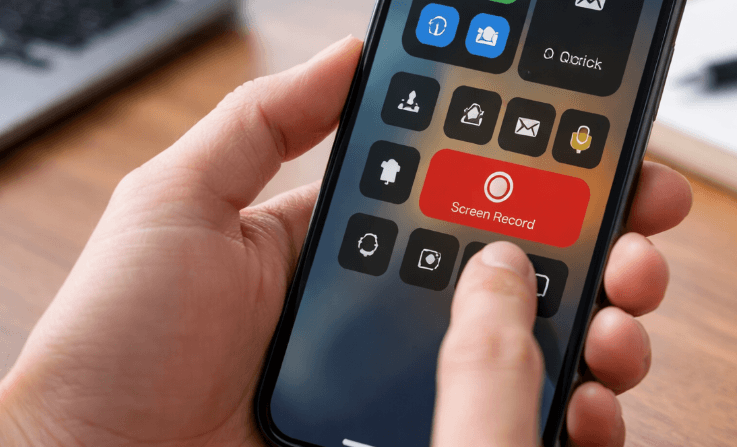
Tutorial on using the screen recording feature on smartphones is something many people look for when they want to capture what’s happening on their device—whether it’s for creating tutorials, saving important moments, or even sharing gameplay with friends. The good news is, modern smartphones already come with built-in screen recording tools, so you don’t need to install extra apps to get started.
In this article, we’ll walk through everything in a simple, relaxed way—from understanding what screen recording is, to actually using it like a pro. Let’s dive in.
What Is Screen Recording and Why Use It?
Screen recording is a feature that allows you to capture everything happening on your phone’s screen in video form. It’s like taking a screenshot, but instead of a single image, you get a full video recording.
People use it for many reasons:
- Creating tutorials or guides
- Recording gameplay highlights
- Saving video calls or online meetings
- Capturing bugs or errors for troubleshooting
Sometimes, you might want to show someone how to do something step-by-step, and explaining it in text just doesn’t cut it. That’s where screen recording shines.
Built-In Screen Recording on Smartphones
Most modern smartphones—both Android and iPhone—already have this feature built in. You don’t need to download anything extra unless you want advanced features.
On Android Devices
Android phones may vary slightly depending on the brand (Samsung, Xiaomi, Oppo, etc.), but generally the steps are similar:
- Swipe down from the top of the screen to open the Quick Settings panel
- Look for the “Screen Recorder” option
- Tap it to start recording
- Choose settings like sound or touch display if available
- Tap “Start”
Once recording begins, everything on your screen will be captured.
On iPhone Devices
For iPhone users, the feature is also easy to access:
- Go to Settings
- Open Control Center
- Add “Screen Recording” if it’s not already there
- Swipe down (or up, depending on your model) to open Control Center
- Tap the recording icon
After a short countdown, recording starts automatically.
Adjusting Screen Recording Settings
Before you hit record, it’s worth checking your settings. This helps you get the best results depending on what you need.
Here are some common options you might see:
| Setting | Description |
|---|---|
| Microphone Audio | Record your voice along with the screen |
| System Sound | Capture internal audio from apps or games |
| Resolution | Adjust video quality (if supported) |
| Touch Indicators | Show taps and gestures on the screen |
Using the microphone is especially useful if you’re making a tutorial. You can explain what you’re doing in real time instead of adding voice later.
Tips for Better Screen Recordings
Recording your screen is easy, but making it look good takes a bit more thought. Here are some practical tips:
Keep Your Screen Clean
Before recording, close unnecessary apps and notifications. You don’t want random messages popping up in your video.
Use Do Not Disturb Mode
This prevents calls, alerts, or pop-ups from interrupting your recording.
Plan What You Want to Show
Even if it’s a casual recording, having a rough idea of what you want to demonstrate will make your video smoother and easier to follow.
Speak Clearly (If Using Audio)
If you’re recording with your voice, try to speak naturally and clearly. No need to sound like a robot—just be yourself.
Keep It Short and Focused
Long recordings can be hard to watch. Break your content into smaller clips if needed.
Editing Your Screen Recording
Once you’ve recorded your video, you might want to make some quick edits before sharing it.
Most smartphones offer basic editing tools, such as:
- Trimming the beginning or end
- Cutting unwanted parts
- Adding simple annotations
If you need more advanced editing, you can use third-party apps. But for most everyday needs, built-in tools are enough.
Common Problems and How to Fix Them
Even though screen recording is straightforward, you might run into a few issues.
Recording Has No Sound
This usually happens when microphone or system audio isn’t enabled. Double-check your settings before recording.
Video Looks Laggy
This can happen if your phone is running too many apps at once. Close background apps and try again.
File Size Is Too Large
High-quality recordings take up more space. If storage is an issue, lower the resolution or trim the video after recording.
Recording Stops Suddenly
This could be due to low storage or battery restrictions. Make sure you have enough space and battery before starting.
When to Use Third-Party Apps
Built-in features are great, but sometimes you might want more control.
Third-party apps can offer:
- Advanced editing tools
- Facecam overlay (record yourself while recording screen)
- Live streaming options
- Better audio controls
However, be careful when installing apps. Always choose trusted sources to avoid security risks.
Creative Ways to Use Screen Recording
You don’t have to limit yourself to tutorials. Screen recording can be used in creative ways too:
- Record memorable chats or moments
- Capture social media content
- Save disappearing stories or live streams
- Create mini video guides for friends
You can even use it for school or work—like explaining a presentation or showing how to use a specific app.
Understanding Privacy and Permissions
One thing people often overlook is privacy. When you record your screen, you might accidentally capture sensitive information.
Be mindful of:
- Notifications with personal messages
- Passwords or login details
- Private conversations
Always double-check your recording before sharing it publicly.
Final Thoughts
Tutorial on using the screen recording feature on smartphones doesn’t have to be complicated. Once you understand the basics, it becomes a powerful tool you can use every day—whether for work, learning, or just having fun.
The key is to keep things simple. Start with the built-in feature, experiment with settings, and gradually explore more advanced options if needed. Over time, you’ll get more comfortable and even find your own style of recording.
At the end of the day, screen recording is all about capturing moments and sharing knowledge in a more visual way. And honestly, once you start using it, you’ll probably wonder how you ever managed without it.