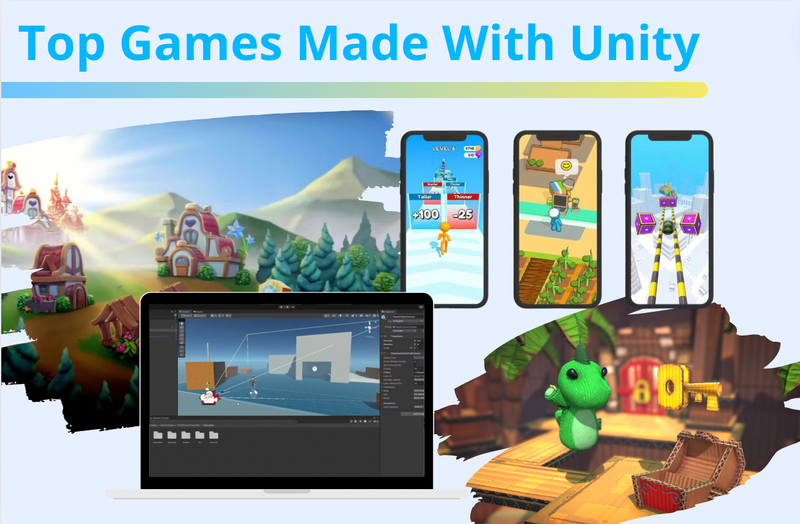
How to Create a Game Using Unity Step by Step is something many beginners search for when they first get interested in game development. Maybe you’ve played games and thought, “I wish I could make something like this.” The good news? You absolutely can—and you don’t need to be a coding genius to get started.
Unity is one of the most popular game engines in the world, used by indie developers and big studios alike. It’s flexible, beginner-friendly, and powerful enough to create anything from simple 2D games to complex 3D worlds. In this guide, we’ll walk through the entire process in a relaxed, easy-to-follow way.
Why Choose Unity for Game Development
Before jumping into the steps, let’s quickly understand why Unity is such a great choice.
Unity supports both 2D and 3D games, works across multiple platforms (PC, mobile, console), and has a huge community. That means tons of tutorials, assets, and help are available online.
Another big advantage is that Unity uses C#, which is considered one of the more beginner-friendly programming languages.
Getting Started with Unity Installation
The first step in learning how to create a game using Unity step by step is installing the engine.
You’ll need to download Unity Hub from the official website. Unity Hub is like a control center where you manage projects and install different Unity versions.
Once installed:
- Open Unity Hub
- Go to the “Installs” tab
- Add a Unity version (choose the latest stable release)
- Include modules like Android or Windows build support if needed
After that, you’re ready to create your first project.
Creating Your First Unity Project
Now comes the fun part—starting your game.
Open Unity Hub and click “New Project.” You’ll be asked to choose a template. For beginners:
- Choose 2D Core for simple games
- Choose 3D Core if you want a more immersive experience
Give your project a name and select a folder location.
Once you click create, Unity will open the editor, which might look overwhelming at first—but don’t worry, you’ll get used to it quickly.
Understanding the Unity Interface
Unity’s interface is divided into several panels:
| Panel Name | Function |
|---|---|
| Scene View | Where you design your game world |
| Game View | What players will see |
| Hierarchy | List of objects in your scene |
| Inspector | Shows properties of selected objects |
| Project | Stores your assets (scripts, images, etc.) |
Take a few minutes to click around and explore. This is a key part of mastering how to create a game using Unity step by step.
Adding Game Objects
Game objects are the building blocks of your game.
To add one:
- Right-click in the Hierarchy panel
- Select 2D Object → Sprite (or 3D Object → Cube)
You’ll see it appear in the Scene view.
You can move, rotate, and scale objects using the tools at the top. This is how you start building your game environment.
Try creating:
- A player object
- A ground or platform
- Some obstacles
This is where your creativity starts to take shape.
Importing Assets into Unity
Assets are things like images, sounds, animations, and models.
You can:
- Drag and drop files into the Project panel
- Or download free assets from Unity Asset Store
Using assets saves time and makes your game look more professional.
Here’s a simple comparison:
| Asset Type | Example Use |
|---|---|
| Sprites | Characters, backgrounds |
| Audio | Music, sound effects |
| Scripts | Game logic |
| Animations | Movement, actions |
Using high-quality assets can make a huge difference in your final result.
Writing Your First Script
Now we get into programming—but don’t worry, we’ll keep it simple.
In Unity:
- Right-click in Project panel
- Create → C# Script
- Name it “PlayerMovement”
Double-click to open it in your code editor.
Here’s a simple example:
using UnityEngine;

public class PlayerMovement : MonoBehaviour
{
    public float speed = 5f;

    void Update()
    {
        float move = Input.GetAxis("Horizontal");
        transform.Translate(move * speed * Time.deltaTime, 0, 0);
    }
}
Attach this script to your player object by dragging it into the Inspector.
Now when you press Play, your player should move left and right.
This is a core step in learning how to create a game using Unity step by step.
Adding Physics and Collisions
To make your game feel real, you need physics.
Select your player object:
- Click “Add Component”
- Add Rigidbody (for movement physics)
- Add Collider (for collision detection)
Do the same for other objects like platforms.
This allows your player to:
- Fall due to gravity
- Collide with objects
- Interact with the environment
Without physics, your game would feel flat and unrealistic.
Creating Basic Game Mechanics
Game mechanics are what make your game playable.
Some examples:
- Jumping
- Scoring points
- Losing health
- Winning conditions
You can expand your script to include jumping:
if (Input.GetKeyDown(KeyCode.Space))
{
    transform.Translate(Vector3.up * 2f);
}
Of course, this is a simple version—but it shows how logic works.
Over time, you’ll build more complex systems.
Designing the Game UI
UI (User Interface) is what players interact with—like menus, score displays, and buttons.
In Unity:
- Right-click in Hierarchy
- UI → Text or Button
You can create:
- Start menu
- Pause screen
- Score counter
A clean UI makes your game easier to understand and more enjoyable.
Testing Your Game
Testing is one of the most important steps.
Click the “Play” button in Unity to test your game.
While testing, ask yourself:
- Does everything work as expected?
- Are controls smooth?
- Are there bugs?
Fixing issues early will save you a lot of time later.
Building and Publishing Your Game
Once your game is ready, it’s time to build it.
Go to:
File → Build Settings
Choose your platform:
- PC (Windows/Mac)
- Android
- iOS
Click “Build” and Unity will generate a playable version of your game.
You can then share it with friends—or even publish it online.
Tips to Improve Your Game Development Skills
Learning how to create a game using Unity step by step is just the beginning. Here are some tips to level up:
- Practice regularly
- Start with small projects
- Learn from tutorials
- Join game dev communities
- Don’t be afraid to fail
Game development is a journey, not a one-time task.
Common Mistakes Beginners Should Avoid
Let’s be honest—everyone makes mistakes at the start.
Here are a few to watch out for:
- Trying to build a huge game immediately
- Ignoring optimization
- Not organizing files properly
- Skipping testing
Avoiding these will make your progress smoother.
Final Thoughts
Creating a game might seem complicated at first, but once you break it down into steps, it becomes much more manageable. How to create a game using Unity step by step is really about learning one small piece at a time—building objects, adding scripts, testing, and improving.
The most important thing is to start. Your first game doesn’t have to be perfect. In fact, it probably won’t be—and that’s completely fine.
What matters is that you keep going, keep learning, and enjoy the process. Who knows? That simple project you start today could turn into something amazing tomorrow.
And remember, every great game developer once started exactly where you are right now.