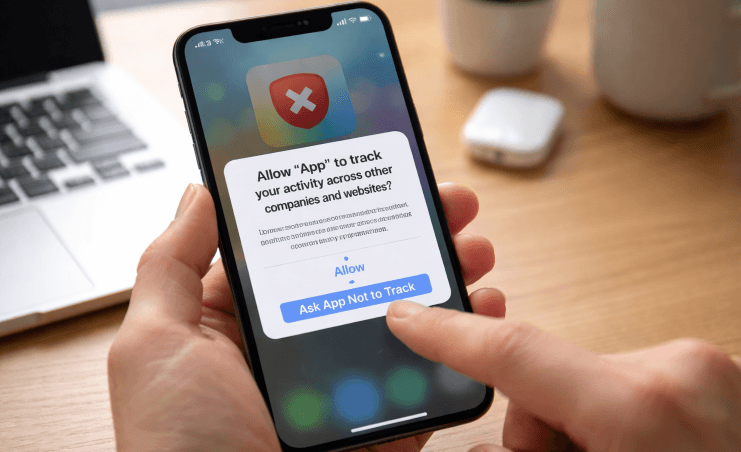
How to Stop App Tracking on iPhone is something more people are starting to care about, especially as privacy becomes a bigger topic in our daily digital lives. If you’ve ever felt like apps know a little too much about you—what you search, what you like, even what you think—you’re not alone. The good news is, Apple actually gives you solid tools to limit this kind of tracking, and you don’t need to be a tech expert to use them.
In this guide, we’ll walk through everything in a relaxed, easy-to-understand way. Whether you’re new to iPhone or just never explored these settings before, you’ll find practical steps here to take back control of your privacy.
Why App Tracking Matters More Than You Think
Before jumping into the steps, let’s quickly understand why this even matters.
Apps track your activity for different reasons—mostly for advertising. They build a profile based on your behavior across apps and websites. That’s why you might search for shoes once and suddenly see shoe ads everywhere.
But here’s the thing: not everyone is comfortable with that level of tracking. It’s not just about ads—it’s about control over your own data.
What’s not commonly known is that many apps track you even when you’re not actively using them. That’s where privacy settings come in.
What Is App Tracking on iPhone?
Apple uses something called the App Tracking Transparency (ATT) framework. This feature forces apps to ask for your permission before tracking your activity across other apps and websites.
So instead of silent tracking, you now get a popup asking something like:
“Allow this app to track your activity across other companies’ apps and websites?”
You can choose:
- Allow Tracking
- Ask App Not to Track
Simple, but powerful.
How to Stop App Tracking on iPhone (Step-by-Step)
Let’s get into the practical part.
Turn Off “Allow Apps to Request to Track”
This is the main switch that controls everything.
- Open Settings
- Scroll down and tap Privacy & Security
- Tap Tracking
- Turn OFF Allow Apps to Request to Track
Once this is off:
- Apps won’t even be able to ask for permission
- Tracking requests are automatically denied
Think of this as the master privacy switch.
Manage Tracking Permissions for Individual Apps
If you prefer more control instead of a full shutdown:
- Go to Settings
- Tap Privacy & Security
- Tap Tracking
- You’ll see a list of apps
- Toggle tracking ON or OFF per app
This is useful if:
- You trust certain apps
- You want personalized ads in some cases
Other Important Privacy Settings You Should Check
Stopping app tracking is just one piece of the puzzle. Here are a few more settings worth exploring.
Limit Location Tracking
Apps often track your location even in the background.
- Go to Settings
- Tap Privacy & Security
- Tap Location Services
From here you can:
- Set apps to Never, While Using, or Always
- Turn off Precise Location for extra privacy
Disable Personalized Ads
Even if tracking is off, Apple still shows ads in some places.
- Go to Settings
- Tap Privacy & Security
- Tap Apple Advertising
- Turn off Personalized Ads
Review App Permissions Regularly
Some apps request access to things like:
- Camera
- Microphone
- Contacts
- Photos
Check them here:
- Settings > Privacy & Security
A quick monthly check can prevent unnecessary data access.
Quick Comparison: Tracking ON vs OFF
| Feature | Tracking ON | Tracking OFF |
|---|---|---|
| Personalized Ads | Highly tailored | Generic ads |
| Data Collection | Extensive | Limited |
| Privacy Level | Lower | Higher |
| App Experience | Sometimes more “relevant” | Slightly less personalized |
| Control Over Data | Minimal | Strong |
Common Myths About iPhone Tracking
Let’s clear up a few misunderstandings.
“Turning Off Tracking Breaks Apps”
Not true. Most apps will still work perfectly fine. You might just see less personalized ads.
“Apple Stops All Tracking Automatically”
Also not entirely true. Apple gives you tools—but you have to activate them yourself.
“I Have Nothing to Hide, So It Doesn’t Matter”
Privacy isn’t about hiding—it’s about control. Even basic data can be used in ways you didn’t expect.
Tips to Stay Even More Private
If you want to go a step further, here are some additional tips:
- Use Safari’s Private Browsing Mode
- Enable iCloud Private Relay (if available)
- Avoid logging in with social media accounts everywhere
- Regularly delete unused apps
Small changes can make a surprisingly big difference over time.
When Should You Allow Tracking?
There are some cases where allowing tracking might make sense:
- You want more relevant ads
- You support free apps that rely on ads
- You trust a specific app or brand
It’s really about balance. You don’t have to go all-or-nothing.
Final Thoughts
Learning how to stop app tracking on iPhone isn’t complicated—it just takes a few minutes of exploring your settings. And once you do it, you’ll have much better control over your personal data.
In today’s digital world, privacy is becoming more valuable than ever. The good thing is, Apple has made it easier than most platforms to manage tracking—you just need to take advantage of it.
So whether you go full privacy mode or just limit a few apps, you’re already taking a step in the right direction.