So, you’ve captured some amazing footage with your smartphone, maybe a hilarious family moment, a breathtaking sunset, or even a quick snippet for your social media feed. But now what? Do you just leave it as raw, unedited clips? Absolutely not! In today’s digital world, turning your smartphone videos into something truly engaging is not only possible but surprisingly easy, thanks to the plethora of fantastic mobile video editing applications available. This guide is all about demystifying the process and empowering you, the beginner, to edit videos on your phone like a pro. We’ll dive into the core functionalities, explore some popular tools, and equip you with the confidence to start crafting your own visual stories. Forget the complicated desktop software; your phone is now your portable editing studio!
Why Bother Editing Your Phone Videos?
You might be thinking, "Is it really worth the effort to edit my phone videos?" The answer is a resounding yes! Think about it: a raw video can be long, rambling, and might not convey the exact message or emotion you intended. Editing transforms these raw clips into polished, impactful narratives. It allows you to:
- Trim the Fat: Remove awkward pauses, shaky bits, or irrelevant sections to make your video concise and engaging.
- Enhance Visuals: Adjust brightness, contrast, and color to make your footage pop.
- Add a Soundtrack: Music and sound effects can drastically change the mood and impact of your video.
- Incorporate Text and Graphics: Add titles, captions, or even simple animations to provide context or add flair.
- Tell a Story: Arrange clips in a logical sequence to create a compelling narrative.
Essentially, editing elevates your videos from mere recordings to mini-masterpieces, ready to be shared with the world. It’s the difference between a snapshot and a well-crafted photograph.
Choosing the Right Video Editing App for You
The market is flooded with options, which can be both a blessing and a curse. For beginners, it’s best to start with apps that offer a user-friendly interface and a good balance of features without being overwhelming. Here are a few popular choices, often lauded for their ease of use:
- InShot: This is a fantastic all-rounder. It’s incredibly intuitive, perfect for social media aspect ratios (think Instagram Stories, TikTok, etc.), and offers a solid range of tools for trimming, splitting, adding music, text, and filters.
- CapCut: Developed by ByteDance (the parent company of TikTok), CapCut is a powerhouse for social media video creation. It’s packed with trending effects, templates, and advanced features that are surprisingly easy to access.
- VN Video Editor: This app strikes a good balance between simplicity and professional-grade features. It offers a multi-track timeline, which is great for more complex edits, but remains accessible for beginners.
- KineMaster: A more feature-rich option, KineMaster offers a lot of creative control. While it might have a slightly steeper learning curve than InShot, its capabilities are impressive for a mobile app.
Tip for Beginners: Don’t feel pressured to download every app. Start with one or two that seem appealing and focus on mastering their core functions. Most offer free versions with plenty of capabilities to get you started.
The Anatomy of a Mobile Video Editor: Key Features Explained
No matter which app you choose, you’ll encounter a common set of tools and concepts. Understanding these basics will make navigating any phone video editor a breeze.
1. The Timeline
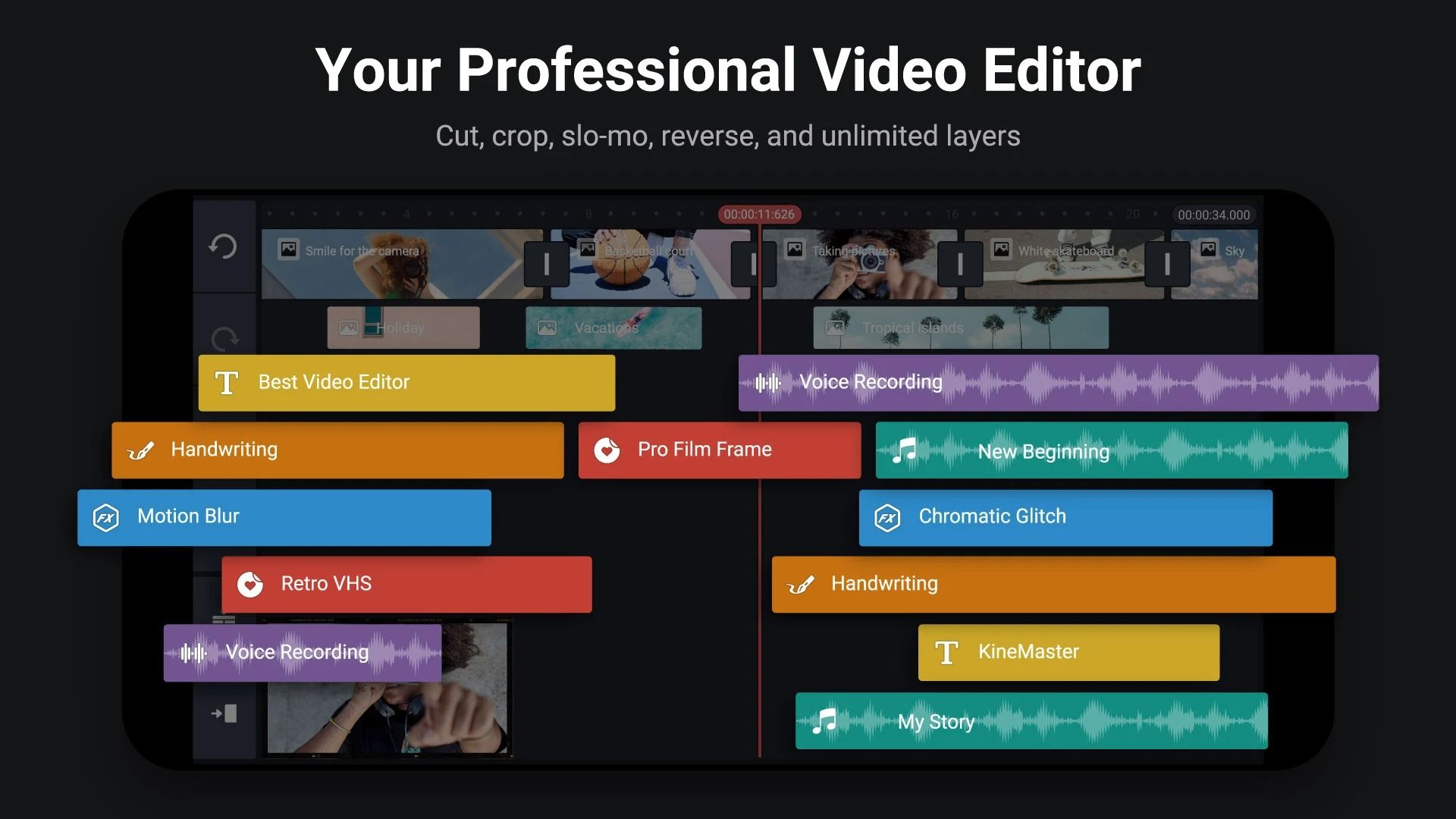
This is the heart of your editing process. The timeline visually represents your video clips, audio tracks, and any other elements you add. You’ll see your footage laid out horizontally, and you can manipulate it here.
- Trimming: This is probably the most fundamental editing task. You’ll grab the ends of a clip on the timeline and drag them to shorten it. This is how you remove unwanted parts.
- Splitting: Sometimes you want to cut a clip into two or more pieces. You can place the playhead (the vertical line indicating your current position) where you want to split and select the "split" or "cut" function.
- Rearranging: Simply tap and hold a clip on the timeline, then drag it to a new position to reorder your scenes.